


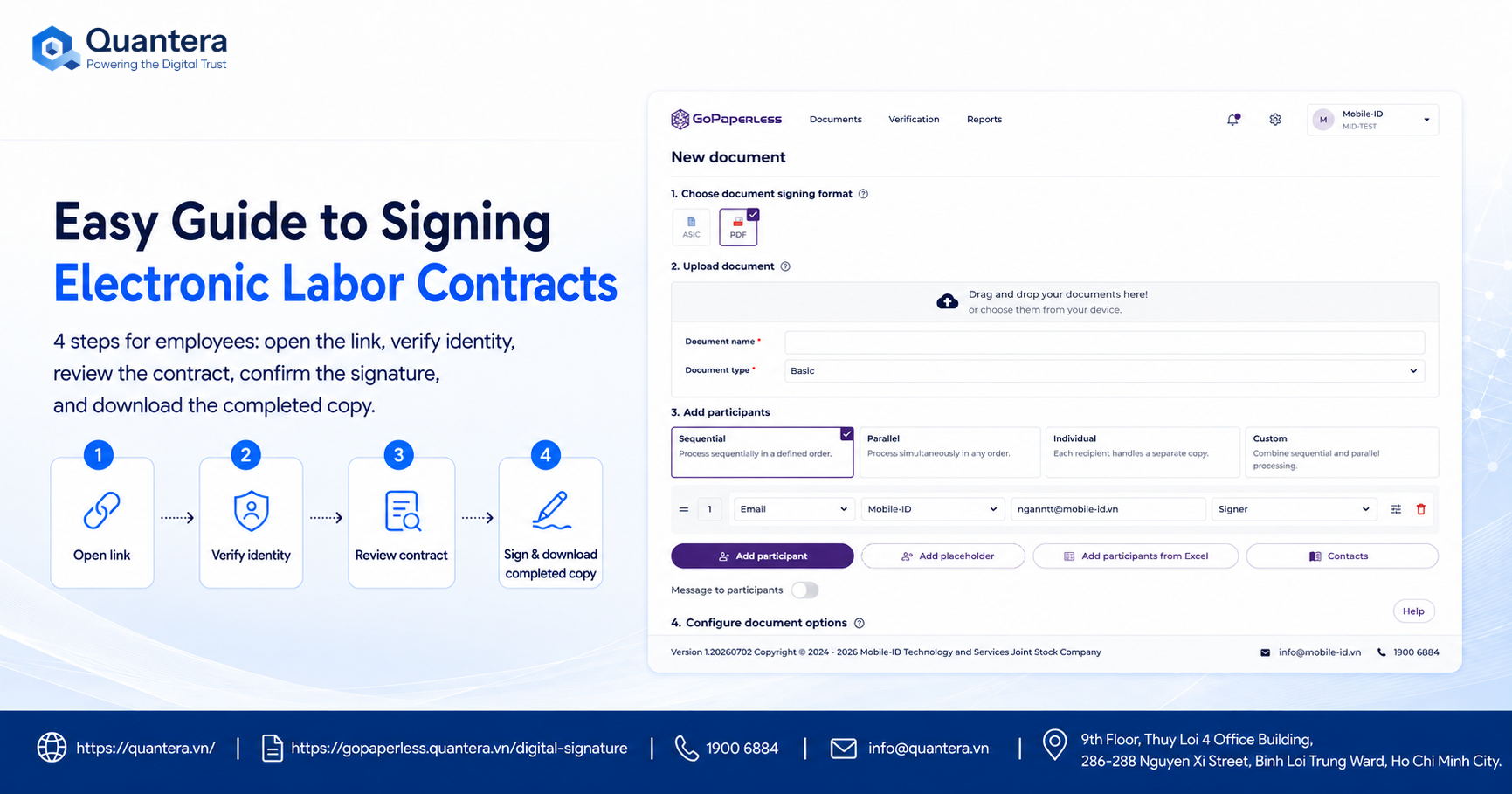
Easy Guide to Signing Electronic Employment Contracts
When receiving a notification requesting the execution of an employment contract online, many employees often feel hesitant because they are unfamiliar with digital signature procedures.
Questions such as “How is a digital signature performed?” or “Is the process complicated?” are common concerns among many employees.
To help address these concerns, this easy guide to signing electronic employment contracts provides detailed instructions on the simplest and fastest steps, helping employees complete the contract execution process accurately through the GoPaperless platform.
1. Legal Validity of Electronic Employment Contracts
Employees can be assured of the legal validity of an electronic employment contract when its execution fully satisfies the conditions prescribed by law.
- Equivalent legal value to paper contracts: Pursuant to Article 14 of the 2019 Labor Code, an employment contract entered into through electronic means in the form of a data message has the same legal validity as a written employment contract on paper.
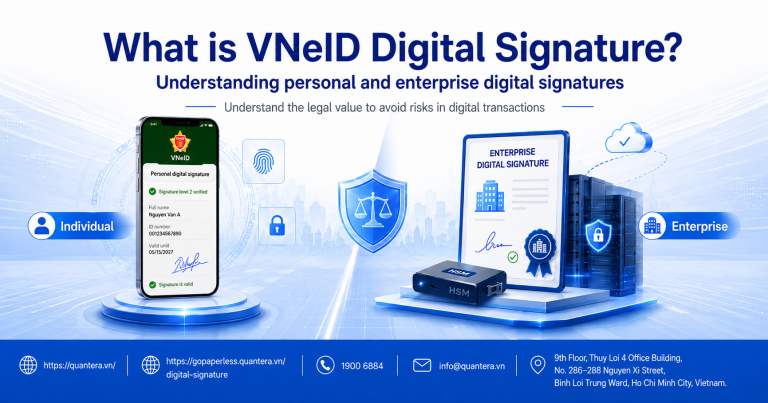
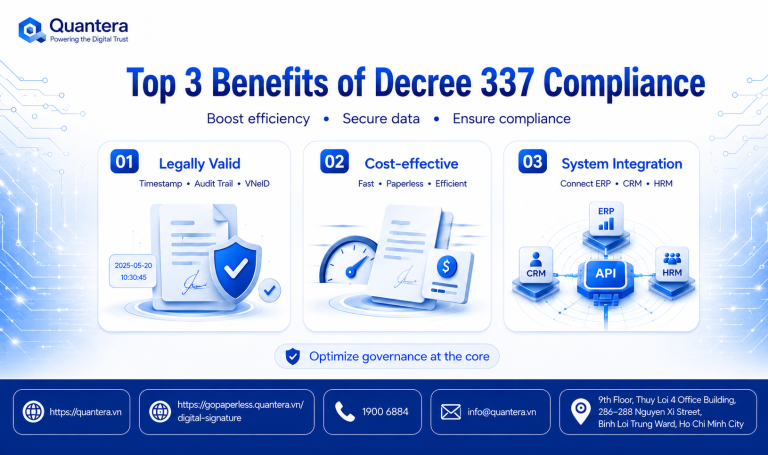
- Legally valid electronic signatures: Under Article 23 of the 2023 Law on Electronic Transactions, a digital signature or a secure specialized electronic signature has the same legal validity as an individual’s signature on a paper document. For electronic employment contracts under Decree No. 337/2025/ND-CP, the execution process must also satisfy requirements relating to identity authentication, digital signatures, timestamps, and data message authentication.
Therefore, this electronic document is fully valid for employees to use when carrying out administrative procedures such as tax declaration, social insurance registration, or applying for a bank loan.
2. What Should Employees Prepare Before Signing the Contract?
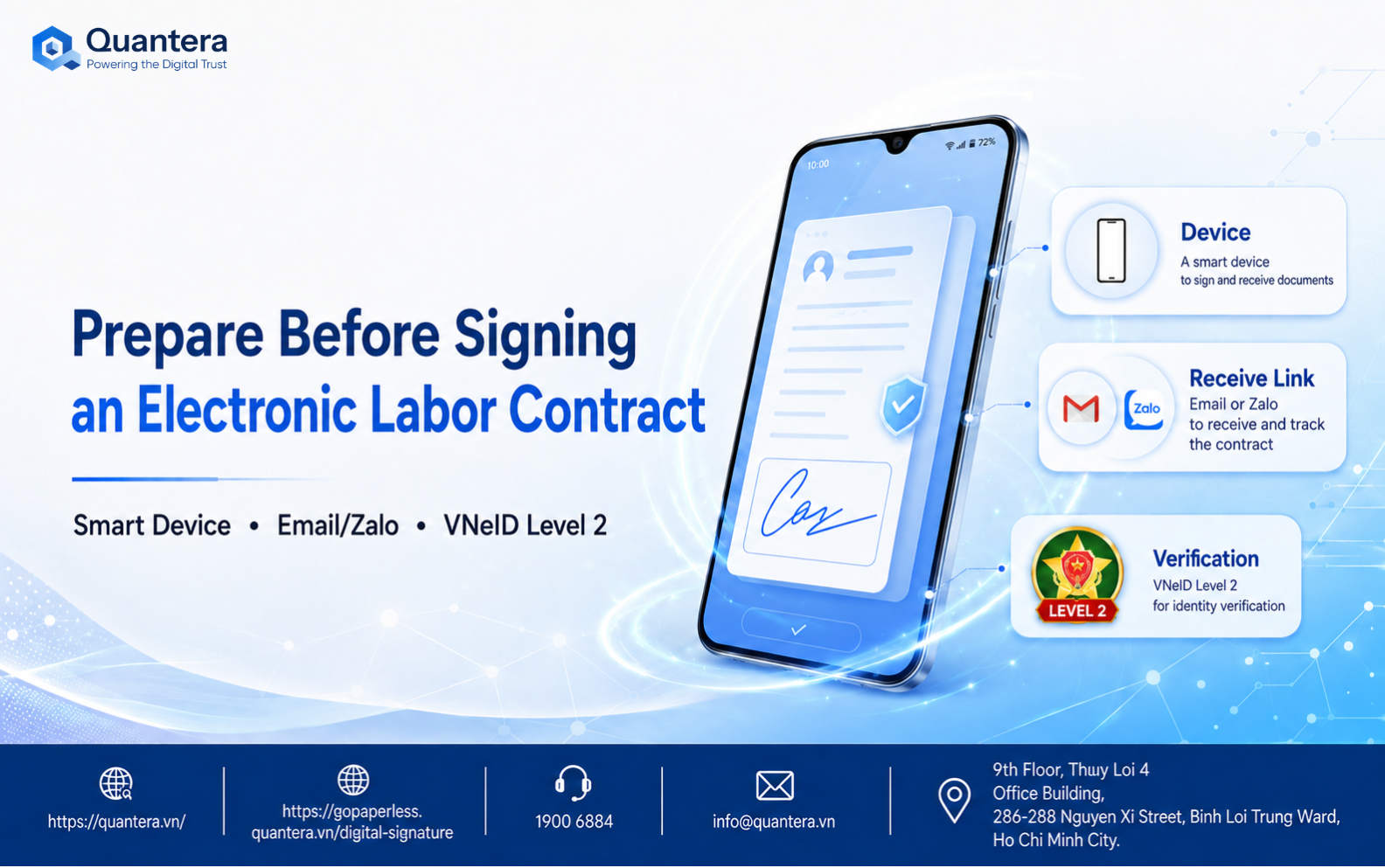
To ensure a smooth signing process, employees should prepare the following basic requirements:
- Smart device: A mobile phone (smartphone), tablet, or laptop with a stable Internet connection.
- Communication channel: Ensure access to a personal Email inbox or the Zalo application to receive the document link from the Human Resources department.
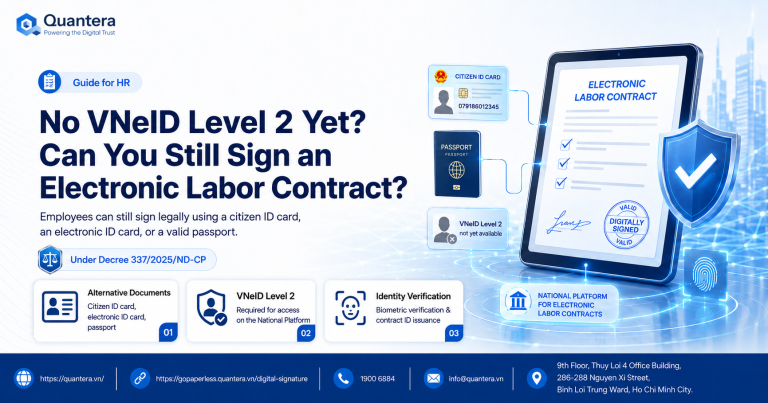
- Identification method: For the VNeID authentication flow illustrated in this article, employees need to have the VNeID application (Level 2) installed and logged in on their device. (Note: Current law allows the use of various identification documents/information depending on the configuration adopted by the enterprise).
3. Easy Guide to Signing Electronic Employment Contracts via GoPaperless
With the goal of optimizing user experience, the electronic employment contract solution GoPaperless from Quantera is designed with an intuitive interface. The video below directly demonstrates each step of the process, helping employees quickly understand the workflow before proceeding:
4. Detailed Signing Steps
Based on the instructional video, employees can follow the four specific steps below:
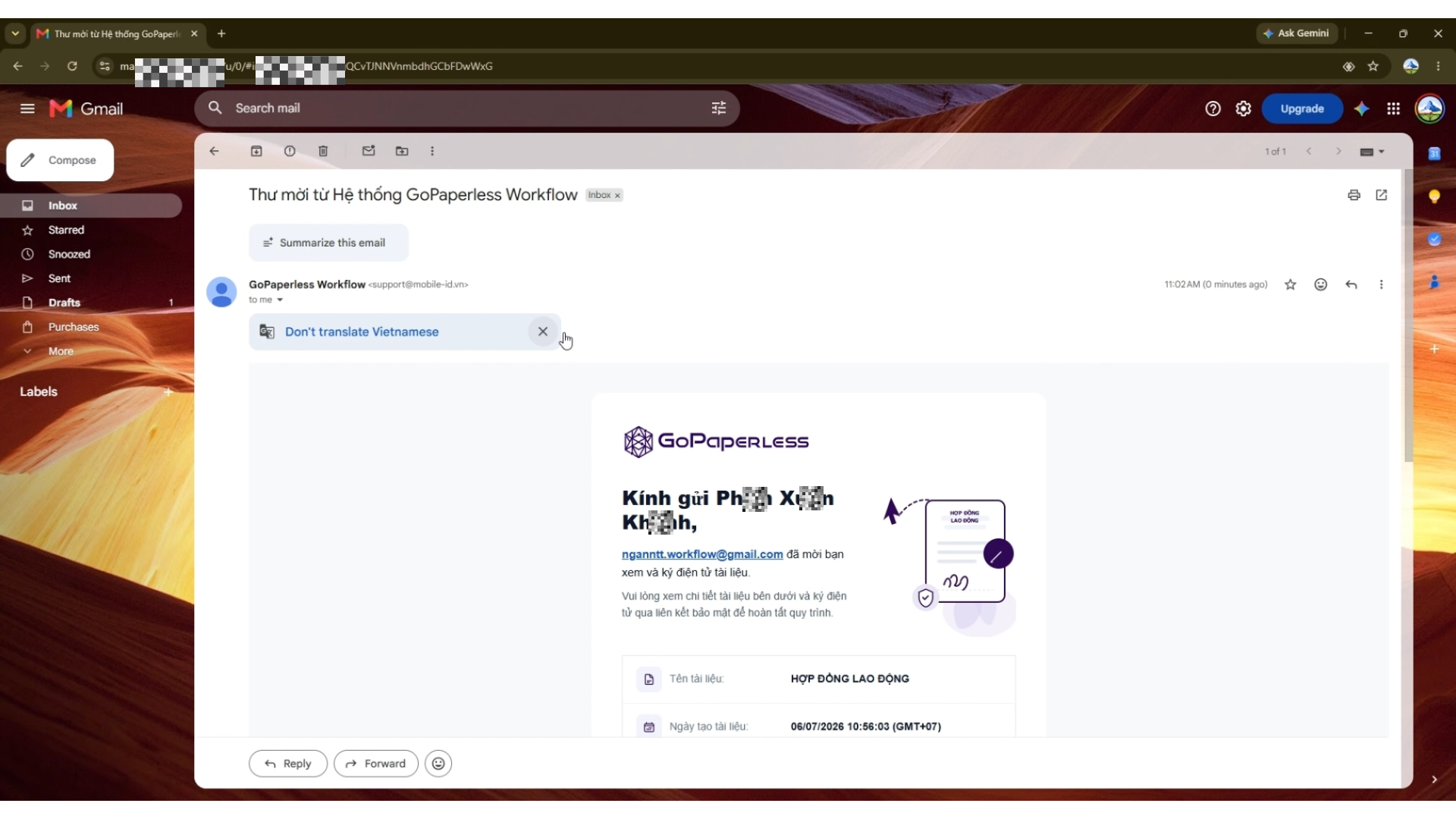
- Check your Email inbox or messages and locate the notification containing the request to execute the contract.
- Click the [View & Sign Document] button, and the system will automatically redirect you to the secure document page.
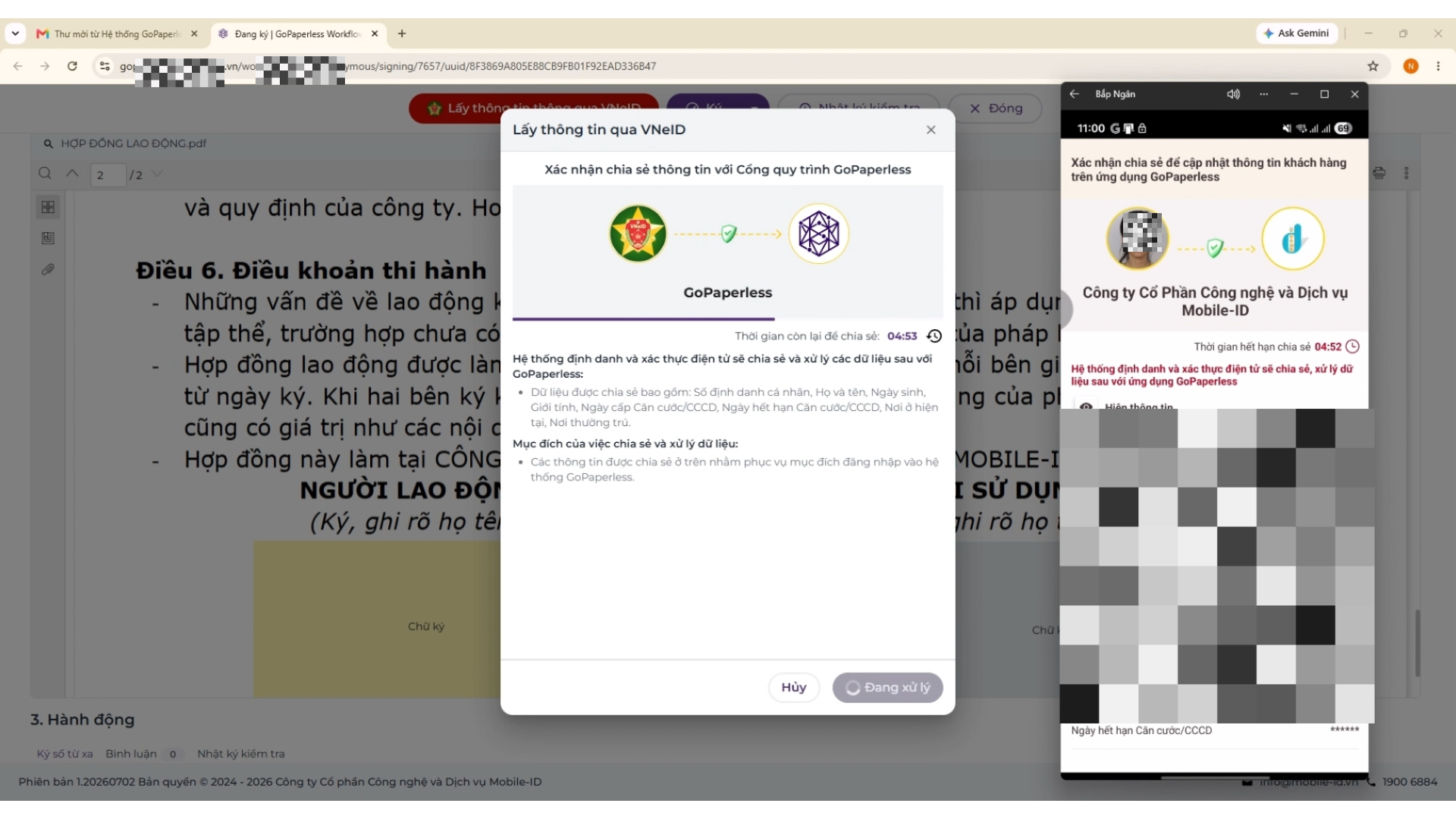
- The system will require identity authentication to ensure security. The employee selects authentication through the VNeID application.
- In the illustrated workflow, after confirming consent to share data from VNeID, identification information (full name, Citizen ID number, date of issuance) will automatically be entered into the contract. Depending on the configuration, the system may require this step to unlock the display of confidential information fields (such as salary and allowances).
- The employee reviews all drafted terms, including job title, working hours, salary, and accompanying benefits.
- If any information is found to be incorrect, the employee clicks [Decline to Sign] and enters the reason for the feedback so that the Human Resources department can make the necessary adjustments.
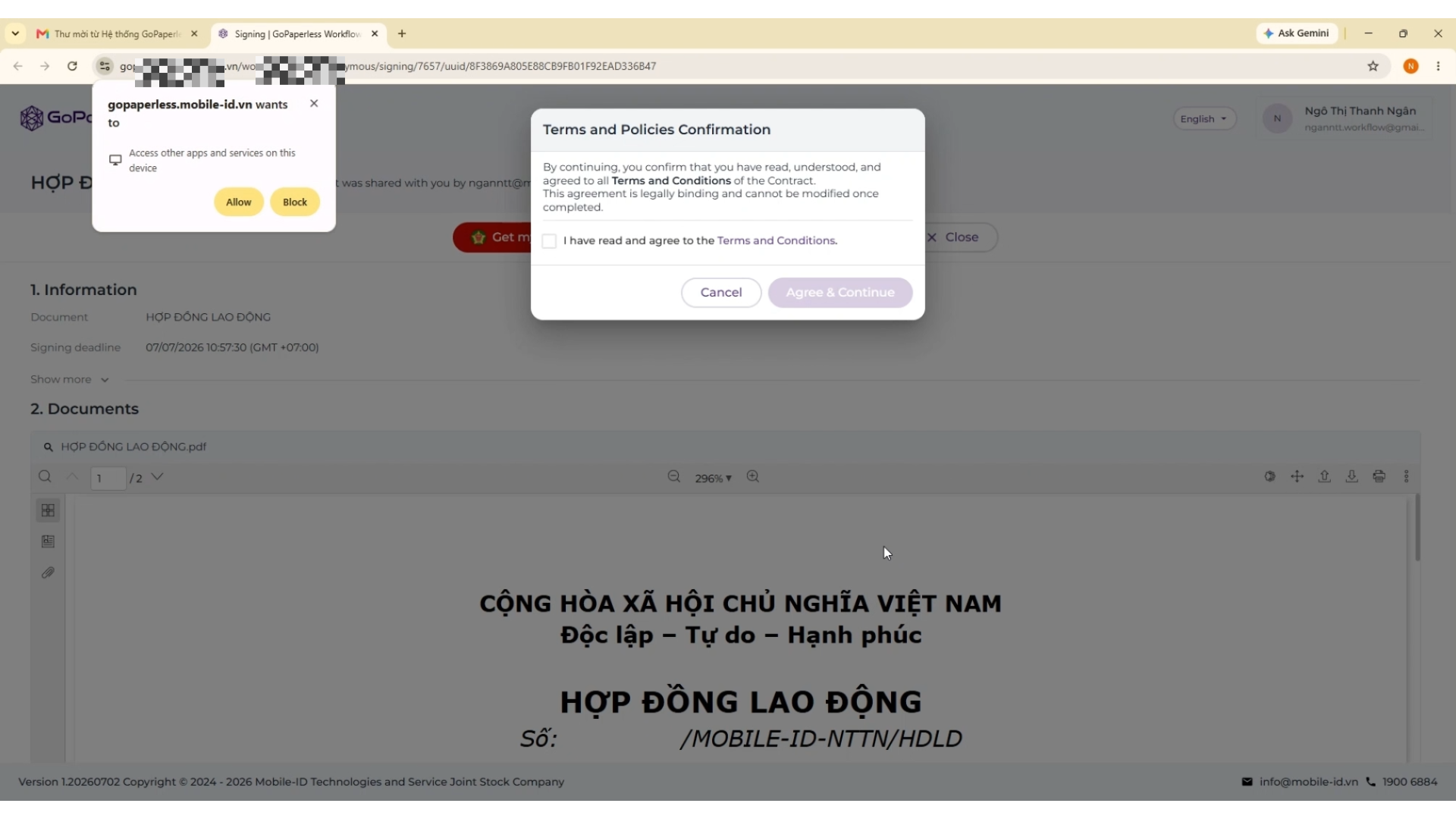
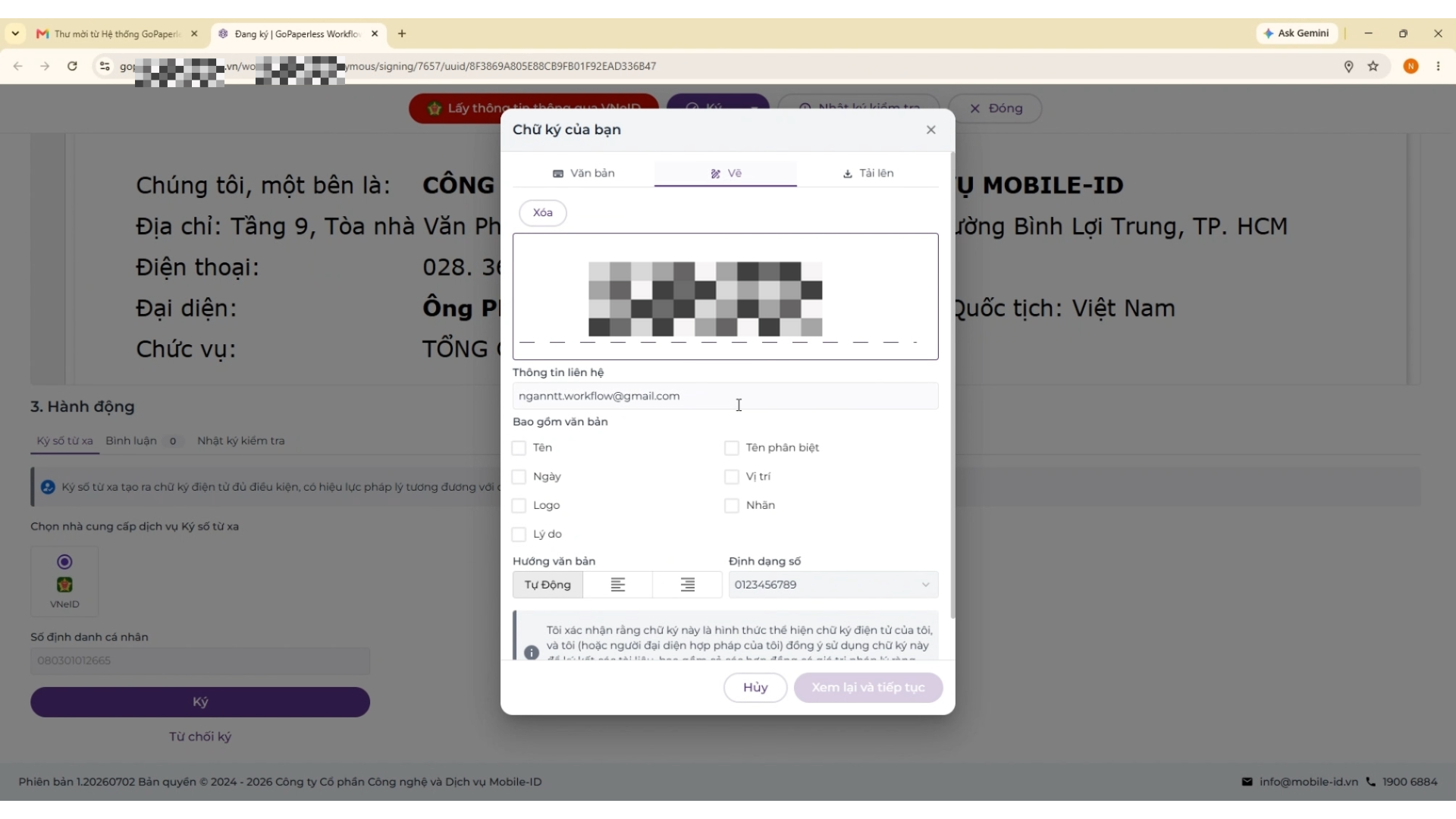
- If you agree with all terms, scroll to the end of the document and tap the [Sign] area.
- A display panel will appear. The employee performs the signature confirmation action (such as selecting a signature template, confirming an OTP, or drawing a visual representation of the signature) according to the instructions on the interface. Depending on the enterprise’s configured signing method, the system performs the digital signature, authentication, and timestamping process in accordance with the applicable requirements for electronic employment contracts.
- Click [Complete] to finish the process.
5. Download the Original Contract for Storage
After the employee and the enterprise representative complete the signing steps according to the configured workflow, depending on the configuration, the system may send an Email notifying the employee that the contract execution process has been completed, with a PDF file attached for the employee to download and store.
Under current regulations, within 24 hours from the time the last party signs, the eContract provider must submit the electronic employment contract to the National Electronic Employment Contract Platform for ID assignment. Contract data and related transaction information are updated and managed on the Platform in accordance with applicable law.
6. Frequently Asked Questions (FAQ)
1. Can I sign an electronic employment contract without Level-2 VNeID? Decree 337 allows the use of various identification documents (such as a physical Citizen ID card or passport). Depending on the signing workflow configured by each enterprise on the eContract platform, employees may still sign without being required to use Level-2 VNeID.
2. What should I do if I discover an incorrect salary after receiving the contract? Employees should not confirm the signature if the contract information is incorrect. Select the [Decline to Sign] button (or an equivalent function on the interface) and clearly state the reason for the discrepancy so that the system can notify the Human Resources department to make the necessary corrections to the new document.
3. Can I download the contract after signing? Absolutely. Once the contract has been signed by all parties and fully timestamped, the system will automatically provide the original contract in PDF format. Employees can download it for storage.
4. How do I know that the contract has been completed? The employee will receive a notification from the system via Email or Zalo (together with the completed PDF file) confirming that the contract has been successfully executed. In addition, the contract status on the link will also display “Completed”.
(See more answers to frequently asked questions at GoPaperless)
7. Conclusion
The adoption of digitalization solutions such as GoPaperless not only helps enterprises standardize administrative processes but also provides convenience and efficiency for employees when starting a new job. With this guide to signing electronic employment contracts, the contract execution process becomes simpler and more accessible to all employees.
👉 For Enterprises: Enterprises wishing to implement electronic employment contract processes for their employees can learn more about the electronic employment contract platform GoPaperless or speak directly with Quantera’s team of technology experts.
Community Discussion